







What comes to mind when you hear “distance learning?” Probably the COVID-19 pandemic, right?
As much as it turned life as we knew it upside down, it fast-tracked learning methods that have proven themselves over the years: eLearning and blended learning. Because of these methods, learning could mean something as simple as logging into your learning management system (LMS).
Video has emerged as the poster child for online learning, as it’s easier to understand and builds a stronger connection with students than formats like PDF. But even the best tools require proper planning, structure, and consistency to succeed — things we can help you achieve.
In this post, we look at eLearning videos, production tips, interactivity strategies, accessibility guidelines, and long-term content management best practices.
Why eLearning videos improve engagement and understanding
eLearning videos are a staple in educational settings and corporate training because they enhance learner engagement and understanding. They help trainers break down complex learning materials, making it easier for learners to follow ideas and remember concepts.
Skeptical? Our Value of Visuals Report explores just how impactful videos are. Here’s what we found in our research:
- Two out of three employees perform better after learning via videos compared to text alone.
- Video learners absorb information 7% faster.
- Combining text and videos increases comprehension by 8%.
eLearning videos also increase student engagement and understanding because they:
- Allow self-paced learning. Viewers can watch them whenever, from wherever, and at whichever speed they want.
- Build a stronger connection than text. Having real people in front of the camera feels more personal.
- Promote content consistency. You can share the same video with learners with similar needs, ensuring they receive the same content.
Instructional videos can also reduce your burden as an instructor by eliminating the need for repeated explanations. This lets you focus on other tasks.
Videos are also more scalable than live sessions. They can serve as few as two people or as many as 200 without taking up too much of your time.
Essential tips for video production in eLearning
Itching to use educational videos in your next project? Here are some tips to help you create clear, engaging, and learner-friendly recordings:
1. Plan objectives and script
Diving into video production without clear objectives and a script is like taking a road trip without a map — only instead of burning fuel, you’ll likely waste a lot of time, ramble on and on, and constantly go off-topic.
Objectives are the foundation of any type of video, guiding every decision you make. For example, do you want to reduce the number of software support tickets? You’ll know to focus on troubleshooting content.
A script then helps shape your ideas to prevent rambling. For optimal results, create a structured outline with bullet points or cue cards. This can make your presentation sound natural.
Sounds easy enough, right? However, it’s easy to make mistakes like:
- Establishing vague or overly broad objectives: You may end up cramming too much information into a single video and overwhelm learners.
- Failing to consider viewers’ levels: Planning objectives and scripts that are too basic or advanced affects content value.
- Being too trainer-centric: Focusing more on what you’ll do than on desired learning outcomes in your script could affect video completion and interactions.
2. Use quality audio and visuals
Ever tried to watch a video with poor audio or low-quality visuals? Yeah … it’s bound to be a turnoff for your learners, too.
This isn’t to say that you should invest in a professional-grade camera and mic. A quality microphone and smartphone camera can get the job done.
Looking for professional screen recording software?
From simple screen captures to polished video editing, TechSmith has everything you need to create professional-quality content.
Learn More
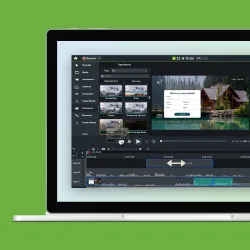
If you want to share your screen, find screen recording software that captures high-quality visuals, like Snagit and Camtasia. Snagit makes it easy to grab quick screenshots or record your screen to drop into a video. If you need to do more in-depth editing, Camtasia handles screen recording and simplifies the entire editing process. Camtasia can also help you:
- Remove filler words (via Audiate)
- Clean up any background noise interfering with your audibility
- Edit narration timing to align with your visuals
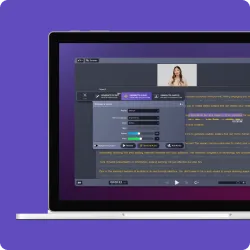
If you need help generating your script or narrating it, you can also take advantage of Camtasia Audiate’s automated script generation capabilities, AI voices, or AI avatars.
Let Audiate write your script!
No more blank pages! Instantly generate amazing, customizable scripts in any length, tone, and style!
Get Audiate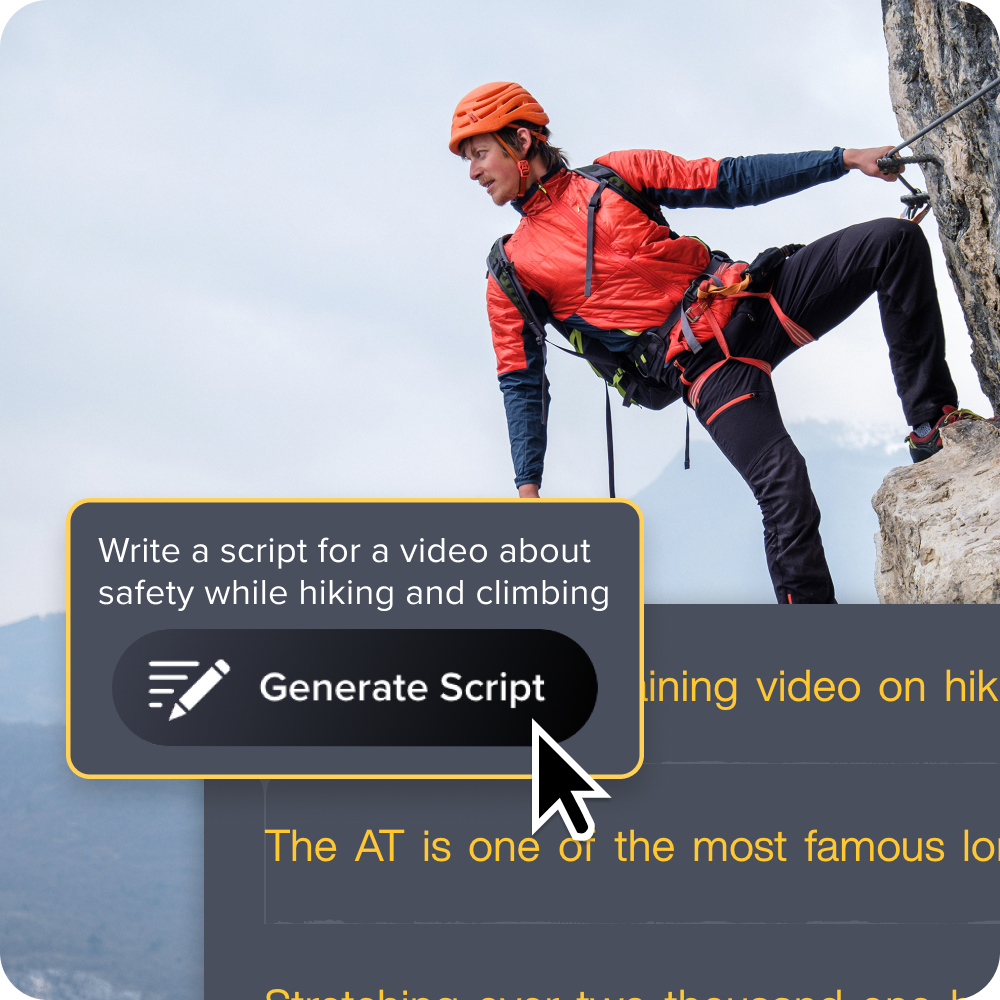
3. Tailor length and pace
More isn’t always better — not when the human attention span continues to shrink. While there’s no standard ideal video length, shorter is usually better. Short videos keep learners engaged and minimize the risk of mental overwhelm, which can boost retention.
To maintain a short video length:
- Focus on a single topic per video
- Break down complex subject matter into multiple microlearning modules
- Edit out any unnecessary content
Proper pacing is also vital for learner engagement. So, avoid speaking too fast and moving too quickly through different concepts. Also, use pauses when emphasizing key points to give learners time to absorb the information.
4. Optimize for mobile devices
As mobile devices continue to lead global web traffic, mobile optimization isn’t optional.
A sizable portion of your target audience will likely access your training videos on phones and tablets. Make their learning experiences as seamless as possible by following these tips:
- Keep visuals clean and use high contrast
- Center key elements
- Use large, readable fonts
- Include clear chapter markers
- Compress file sizes — you can achieve this without losing visual quality by trimming your video length or by converting your video into an MP4 with the H.264 codec before compressing it
Camtasia gives you control over your videos, so you can edit them as needed to optimize them for mobile.
What’s more, you can record screens for iOS and Android devices:
iOS: Record the screen of your iOS device via TechSmith Capture and export your recording to Camtasia for editing.
Android: Record the screen of your Android device (or other devices, like a desktop or Chromebook), and edit it in Camtasia.
This means you give your audience a seamless mobile experience and receive one yourself during the video production process.
Go from screen recording to polished video
A screen recording is just the start. Camtasia’s editor helps you add the callouts, animations, and edits you need to create a truly professional video.
Free Download
How to make eLearning interesting through interactivity
Even a well-produced video will register high drop-off and low engagement rates if it’s passive. So, be sure to encourage viewer participation.
Here’s how to make interactive videos that capture and maintain a learner’s attention:
Add quizzes or polls
Want to boost engagement while also gaining learner feedback? You can’t go wrong with well-timed quizzes or polls. Use them to identify what you’re doing right (or wrong), test learners’ comprehension, or prompt reflection.
With Camtasia, you can add surveys as well as quizzes with multiple-choice, true/false, short-answer, or fill-in-the-blank questions directly into your videos. You also have the option to score the quizzes and display feedback to help learners test their understanding themselves.
Use branching scenarios
Let viewers choose their own paths by adding branching scenarios. This feature adds an element of realism to training and gives viewers more control over what they learn, which could encourage video completion.
Branching scenarios are especially great for training topics like customer service, software troubleshooting, and compliance. Here are some examples of branching structures:
| Decision point | Option A result | Option B result | Learning reinforced |
| Software troubleshooting | Guided diagnostic steps | Submit support ticket demo | Technical proficiency, problem-solving |
| Support ticket management | First-contact resolution steps | The escalation process | Customer service efficiency |
| Workplace safety management | Hazard mitigation guidance | Your organization’s reporting workflow | Risk assessment |
Use clickable hotspots or timed prompts
Turn passive videos into “lean-in-and-engage” experiences by adding clickable moments that display additional information, guide learners on what steps to take, or link to external pages.
But be careful not to break your video’s flow. For example, instead of adding a link to a related resource when you’re in the middle of explaining a concept, wait till the end.
Camtasia lets you add various hotspots, including:
- URLs that open external pages
- Markers that send viewers to specific parts of a video
- Pause and click prompts that stop playback until audiences interact
- Time codes that let viewers skip ahead or replay video sections
How to structure accessible eLearning videos that everyone can use
To encourage engagement and completion, structure your videos so that all learners, regardless of their ability, device, or preferred learning style, can use them effectively. Here are a few tips to help you do that:
- Keep your videos bite-sized by focusing on single concepts.
- Break complex or lengthy topics into modular chapters.
- Maintain consistency across all your recordings — include your branding and follow the same video structure. For example, you could start with a title, then an overview of your topic, and a summary or call to action at the end.
- Keep your language simple and direct, and include diverse representations.
- Add downloadable transcripts for offline access and include captions to promote video training accessibility for viewers with hearing loss or those who prefer to watch videos with the sound off. This also helps you comply with Web Content Accessibility Guidelines (WCAG).
- Accompany every screen recording with audio narration for low-vision viewers.
- Make interactive elements like hotspots keyboard-accessible.
- Test your videos on multiple devices — smartphones, screen readers, tablets, and desktops — to confirm their accessibility.
Camtasia can help tick many of these boxes. It allows you to:
- Build and save video templates to guide collaborators and promote consistency.
- Create AI avatars to help with narration — just write your script (making sure to maintain a conversational tone) and upload it to Audiate.
- Automate transcription and captioning. It lets you generate closed and dynamic captions.
Tips to organize and maintain your eLearning video library for maximum impact
Trainers and educators often create and share multiple videos. If this is the case for you, don’t stop at making them interactive and accessible. Organize and update your video library to help learners quickly find what they need and maximize the value of your training.
Let’s take a look at how to do that.
Audit regularly
Regularly audit and update video content, making sure to keep it fresh, valuable, and engaging. Here’s how:
- Measure video training engagement metrics like completion rates, pause frequency, and click-throughs to see what appeals to your audience.
- Review your videos to identify duplicate or outdated content.
- Collect feedback to understand learners’ needs.
- Archive or replace any video that no longer offers value.
Use clear categories
The last thing anybody wants is to go through your entire video library to find what they need. So, make sure they don’t have to.
Group videos by appropriate categories, like eLearning courses, departments, skill levels, or topics, and let learners know how to access each one. Be sure to use simple, familiar names for your categories and tag videos that apply to multiple groups, using relevant titles.
Refresh content on a schedule
Create a content review schedule to keep your video library up to date. For example, you could plan a monthly or quarterly review, where you check compliance-related videos for accuracy and others for engagement (using metrics such as total views and shares).
After reviewing your content, refresh it as needed: update compliance-related content to highlight new standards, software-based tutorials to reflect new features or processes, and other content to focus on what drives performance.
Updates are easy on Camtasia, as it records your camera, screen, microphone, and system audio on separate tracks. This means you don’t need to redo entire videos when making small adjustments!
Drive better results with an actionable video strategy
There’s no doubt about the value of using video in eLearning. It allows learners to study at their own pace, simplifies complex topics, boosts knowledge retention, and makes work easier for trainers.
Remember: these benefits hinge on clear learning objectives, well-structured content, robust interactivity, and exceptional video tools.
TechSmith’s video creation and editing tools can help you create effective eLearning videos. With Camtasia and Snagit, you can record your screen, use AI avatars for your presentations, add captions, and quickly update videos as needed. Best of all? You don’t need any prior experience. Our tools are built for beginners and experienced video production teams.
Want to engage learners and elevate your eLearning content? Try Camtasia and Snagit today!
Record your screen with Snagit
Snagit makes it easy to share quick updates and how-to’s by capturing exactly what’s happening on your screen.
Get Snagit
Share